
Accessibility Browser settings Guide
How to Turn On Accessibility Features in Google Chrome
Magnifying your screen
This feature will increase and decrease the size of text and images on the screen for better visibility.
- Press and hold down the CTRL key on your keyboard.
- At the same time as holding the CTRL key:
- press the + key to increase the size of the text and images or
- press the - key to decrease the size of the text and images.
- Keep repeating these steps until you reach the desired size. You can return to the standard size by pressing CTRL + 0.
Making Text larger in Mozilla Firefox
Follow these steps to increase or decrease the size of the text for the web page you are viewing:
- Open the View menu with the mouse or by pressing Alt and V at the same time.
- Select the Text Size option with the mouse or by pressing Z.
- Increase or decrease the text size with the mouse or by using the up and down arrow keys and pressing Enter.
- Alternatively, you can press Ctrl and + to increase the text size, Ctrl and - to decrease the text size. Ctrl and 0 returns you to the default 'normal' size.
Set a minimum text size for all pages:
- Open the Tools menu with the mouse or press Alt + T.
- Click on Options, or press O, to open the Options dialog box.
- Click the Content tab or use the arrow keys until it is highlighted (in blue).
- In the Fonts & Colours box click on Advanced, or press Alt + D, to open the Fonts dialog box (see Fig 1 below).
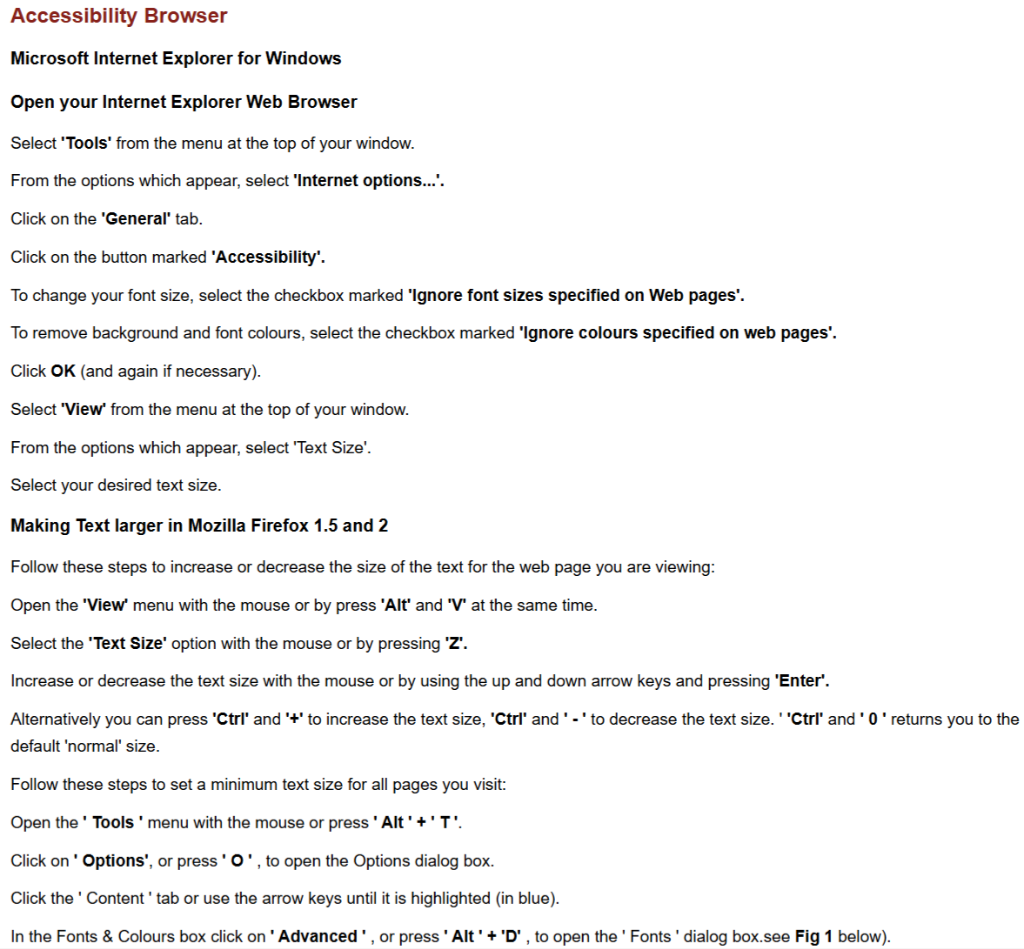 Fig 1: Options Content Tab Dialog
 - Click on Minimum font size box or press Alt + O. Use the up and down arrows to select a new font size and press Enter (see Fig 2 below).
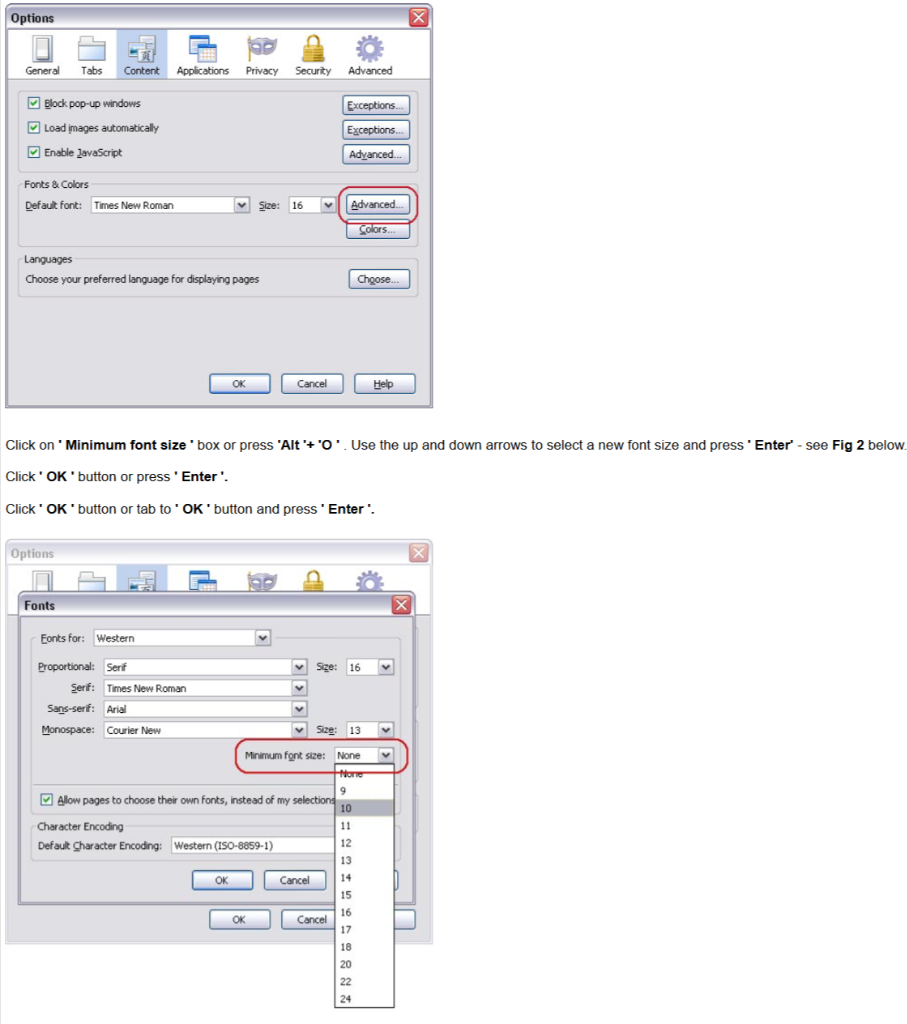 Fig 2: Minimum Font Size Selection
 - Click OK button or press Enter.
- Click OK button or tab to OK button and press Enter.
Microsoft Internet Explorer for Windows
Making text larger in Internet Explorer 7
Internet Explorer includes a zoom feature which allows you to enlarge the whole browser window:
- Press Ctrl + + to increase the zoom and Ctrl + - to decrease the zoom.
- You can also change the text size. The way to do this does depend on how the site has been built. For many sites you only need to do the following:
- Open the Page menu with the mouse or by pressing Alt + P.
- Select the Text Size option with the mouse or by pressing X (see Fig 1 below).
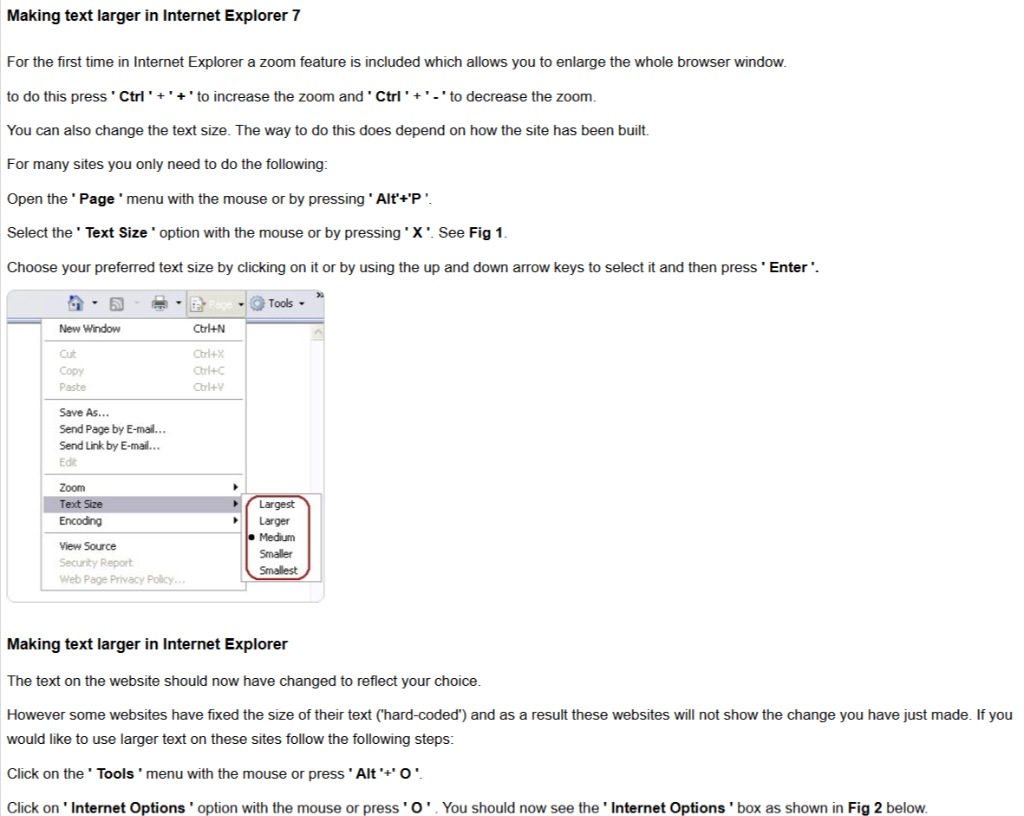 Fig 1: IE Text Size Menu
 - Choose your preferred text size by clicking on it or by using the up and down arrow keys to select it and then press Enter.
Making text larger in Internet Explorer
The text on the website should now have changed to reflect your choice. However some websites have fixed the size of their text ('hard-coded') and as a result these websites will not show the change you have just made. If you would like to use larger text on these sites follow the following steps:
- Click on the Tools menu with the mouse or press Alt + O.
- Click on Internet Options option with the mouse or press O. You should now see the Internet Options box (see Fig 2 below).
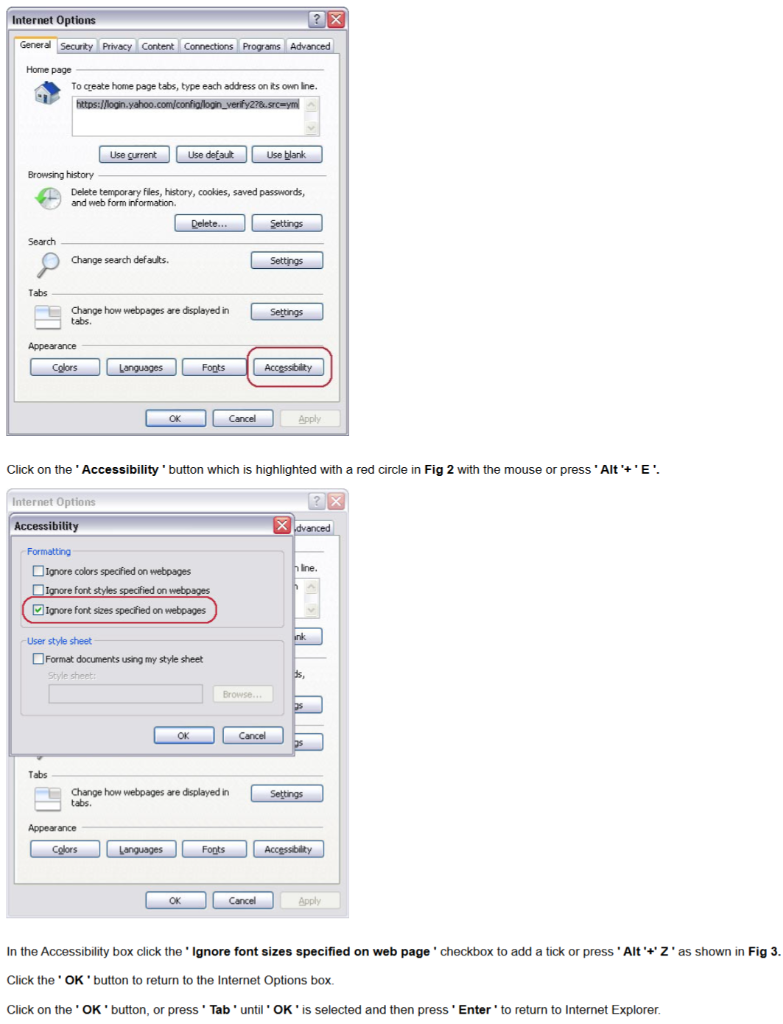 Fig 2: Internet Options Dialog
 - Click on the Accessibility button which is highlighted with a red circle in Fig 2 with the mouse or press Alt + E.
- In the Accessibility box click the Ignore font sizes specified on web page checkbox to add a tick or press Alt + Z (see Fig 3 below).
 Fig 3: Ignore Font Sizes Options
 - Click the OK button to return to the Internet Options box.
- Click on the OK button, or press Tab until OK is selected and then press Enter to return to Internet Explorer.